How to Master Google Pixel’s Context-Aware Voice Typing for Hands-Free Editing
Introduction
You’re already familiar with Gboard’s solid voice typing, but did you know your Google Pixel takes it to a whole new level? Thanks to context-aware smarts, you can dictate, edit, formalize, and rewrite entire paragraphs without ever touching the screen. This guide walks you through every step to unlock that superpower, from setup to advanced voice commands. By the end, you’ll be drafting and polishing messages, notes, and documents purely with your voice.
What You Need
- A Google Pixel phone (Pixel 6 or newer recommended for full feature set)
- Gboard installed and set as your default keyboard (usually pre‑installed on Pixel)
- An active internet connection (for cloud‑based voice processing)
- A quiet environment for best accuracy
- Your Pixel updated to the latest Android version (Android 14 or later)
Step 1: Enable Voice Typing on Your Pixel
Before you can use context‑aware voice typing, make sure the feature is turned on. On your Pixel, go to Settings > System > Languages & input > On‑screen keyboard > Gboard > Voice typing. Toggle on Use voice typing. For hands‑free operation, also enable Launch with keyboard and Automatically start so that the mic icon appears whenever you tap a text field.
Step 2: Start Dictating with Voice Typing
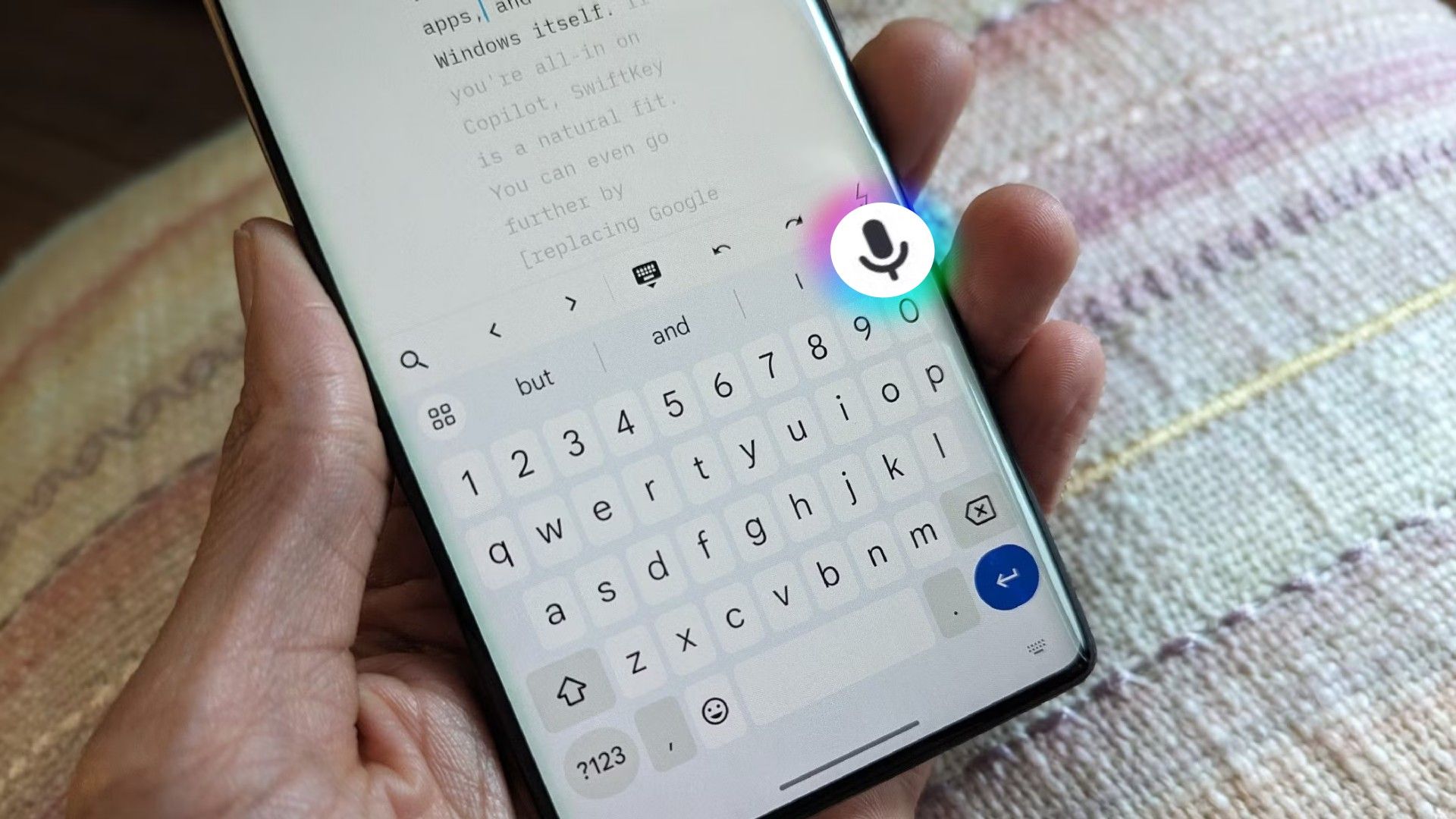
Open any app where you want to type (Messages, Keep, Docs, etc.). Tap a text field to bring up Gboard, then tap the microphone icon on the top‑right corner of the keyboard. Speak naturally, and watch your words appear on screen. Context‑aware voice typing understands punctuation commands (say “comma”, “period”, “question mark”) and even detects line breaks when you pause. Don’t worry about mistakes — you’ll fix them in the next steps.
Step 3: Use Voice Editing Commands to Perfect Your Draft
After you’ve dictated a messy draft, you can edit it entirely by voice. While voice typing is still active (the microphone icon is red), say editing commands. Here are the most useful ones:
- “Replace
with – For example, “Replace ‘great’ with ‘amazing’”” - “Insert
after – Adds text right after a specific word.” - “Delete
” – Removes a word. You can also say “Delete last sentence” or “Delete paragraph”. - “Select
” – Highlights a phrase so you can then say another command like “capitalize” or “bold”. - “Formalize” – Rewrites the selected text in a more professional tone.
- “Rewrite” – Rephrases the selected chunk for clarity or variety.
The Pixel’s context awareness means it understands which word you mean even if you don’t say the exact location – for example, “Delete the second word after ‘hello’” works perfectly.
Step 4: Format and Refine Without Touching the Screen
Want to make your text bold, italic, or add a heading? With the voice editing active, select the text you want to change by saying something like “Select this paragraph” or “Select the last three words”. Then issue a formatting command:
- “Bold” or “Italic”
- “Underline”
- “Strikethrough”
- “Make this a heading” (in apps that support rich text)
You can also change the case: say “Capitalize that” or “Make all caps”. The Pixel interprets these commands in the context of what you just selected, so you never have to stop speaking to tap a formatting icon.
Step 5: Use Voice to Navigate and Correct Errors
Sometimes voice typing misunderstands a word. Instead of tapping the backspace key, say:
- “Undo that” – Reverses the last action.
- “Go back to the beginning” or “Move cursor to the end”
- “Add a space” or “Remove space”
For more precise navigation, say “Move cursor after

Step 6: Practice with a Sample Draft
Open Google Keep or a simple text file and dictate this sentence: “I hope you are doing good and I wanted to ask if you can help with the project next week.” Then try these voice editing commands:
- Say “Select ‘good’” and then “Replace with ‘well’”.
- Say “Select the second half of the sentence” and then “Formalize” to create something like “I wanted to inquire if you are able to assist with the project next week.”
- Say “Insert ‘very much’ after ‘help’”.
- Say “Delete the word ‘next’” and then “Add a period at the end”.
Notice how the Pixel understands your intent even when you don’t give exact positions. That’s the context‑aware magic at work.
Step 7: Combine Voice Editing with Smart Replies and Suggestions
While typing, Gboard may suggest Smart Replies or auto‑corrections. You can accept a suggestion by saying “Accept” or “Use suggestion”. To reject, say “No, keep my text”. This works especially well when you’re composing a quick email and want to approve a recommended phrase without tapping.
Tips for the Best Experience
- Speak clearly and at a moderate pace. The Pixel can handle natural pauses, but mumbling or extremely fast speech reduces accuracy.
- Use punctuation commands early. Saying “comma” and “period” as you dictate helps the AI understand context, making later edits easier.
- Practice with the “Select” command. This is the gateway to most advanced edits. The more you use it, the better the phone learns your speech patterns.
- Keep your Pixel updated. Google regularly improves the voice models and adds new commands with Feature Drops and system updates.
- Remember you can always fall back to touch. Voice editing is powerful, but for complex formatting, you might still want to tap the screen occasionally.
- Use it in different apps. Voice editing works in WhatsApp, Gmail, Slack, and most text fields. Each app may handle rich text differently, so experiment.
With practice, voice editing will become second nature, letting you compose and polish text without ever lifting a finger. Your Pixel is already listening – now you know exactly what to say.
Related Articles
- Mastering Liquid Glass in WhatsApp's In-Chat Interface: A Developer's Guide
- 5 Exciting Details About the Upcoming My Hero Academia Spin-Off Anime Featuring Eri
- Kubernetes v1.36: 6 Key Facts About In-Place Pod-Level Vertical Scaling (Now Beta)
- How to Test the New Swift Build System in Swift 6.3
- Rust 1.95.0 Lands: New `cfg_select!` Macro and Match Guards Boost Compile-Time Flexibility
- Microsoft Restructures Windows Insider Program: New Channels and Feature Selection in Latest Builds
- Microsoft 365 Subscribers Get Critical Security Patch and Copilot Upgrade in Latest Update Wave
- Exclusive: White House Eyes Ban on Chinese Cellular Modules in Widening Tech Crackdown